

Getting Started
Domains and DNS
Verify a sending domain and the From-address rules enforced on every send.
Why verification
Notideus sends through AWS SES on your behalf, so every sending domain must prove ownership with SPF, DKIM, and DMARC DNS records. Only verified domains can send — an unverified domain is rejected before any email is queued, which keeps your sender reputation under your control.
Verify a domain
- Open Domains in the dashboard and click Add domain.
- Enter the domain (e.g.
acme.com). - Copy the DNS records the dashboard shows — DKIM, MX, SPF, and DMARC — into your DNS provider.
- Wait for verification. SES confirms the records automatically and the domain flips to verified.
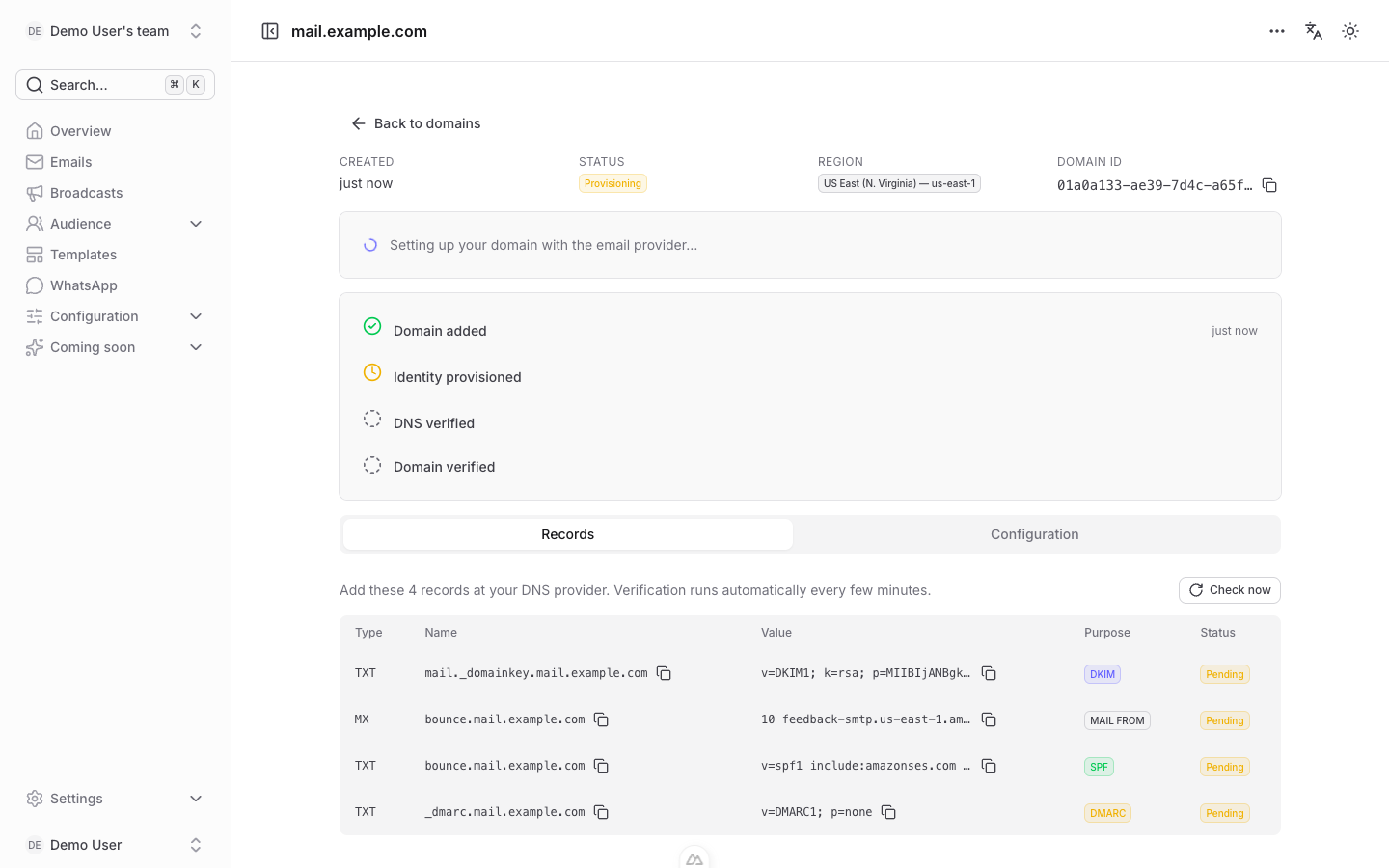
The DKIM TXT value is returned as several quoted character-strings of at most 255 characters (e.g.
"v=DKIM1; k=rsa; p=…" "…"). Paste the value exactly as returned — including the quotes — into your DNS provider's TXT record; resolvers concatenate the chunks automatically.From-address resolution
The sending domain is never taken from the request body — it is always derived from the from address, which accepts two formats:
noreply@acme.comAcme <noreply@acme.com>
The address's domain must match one of your team's verified domains exactly or as a subdomain: noreply@acme.com and noreply@mail.acme.com both match a verified acme.com.
Failure modes
- 400
invalid_from— the From address cannot be parsed. Check theName <address>syntax. - 422
from_domain_not_verified— the address parses, but its domain matches no verified team domain. Example response:
{
  "error": {
    "code": "from_domain_not_verified",
    "message": "no verified domain matches the from address"
  }
}
A From address whose domain exists on your team but is still provisioning currently fails with the same 422
from_domain_not_verified; a dedicated 409 domain_not_verified for this case is planned.